License summary
The Summary tab shows the following:
- A table displaying license status for each license type
-
Graphs of license utilization over time. You can specify a date range, and you can filter the graph based on license type.
Note: For date ranges of one day, Meeting Management displays one data point per 5 minutes. For longer date ranges, there is one data point per day showing the peak value.
Note: If you are using license of a type that has not been installed, no percentage can be calculated, and any utilization will be shown at the top of a broken y-axis.
A banner appears at the top of the page if the selected cluster has the status Insufficient licenses or Out of compliance. See status definitions in the Overview page article.
Note: Meeting Management does not support license status for Capacity Units. The number of installed Capacity Units will appear in the table, but the use of Capacity Units will not be displayed anywhere.
In the 90 day report you can see the number of Capacity Units installed, but the use of licenses will be reported as if you were using SMP plus or PMP plus licenses.
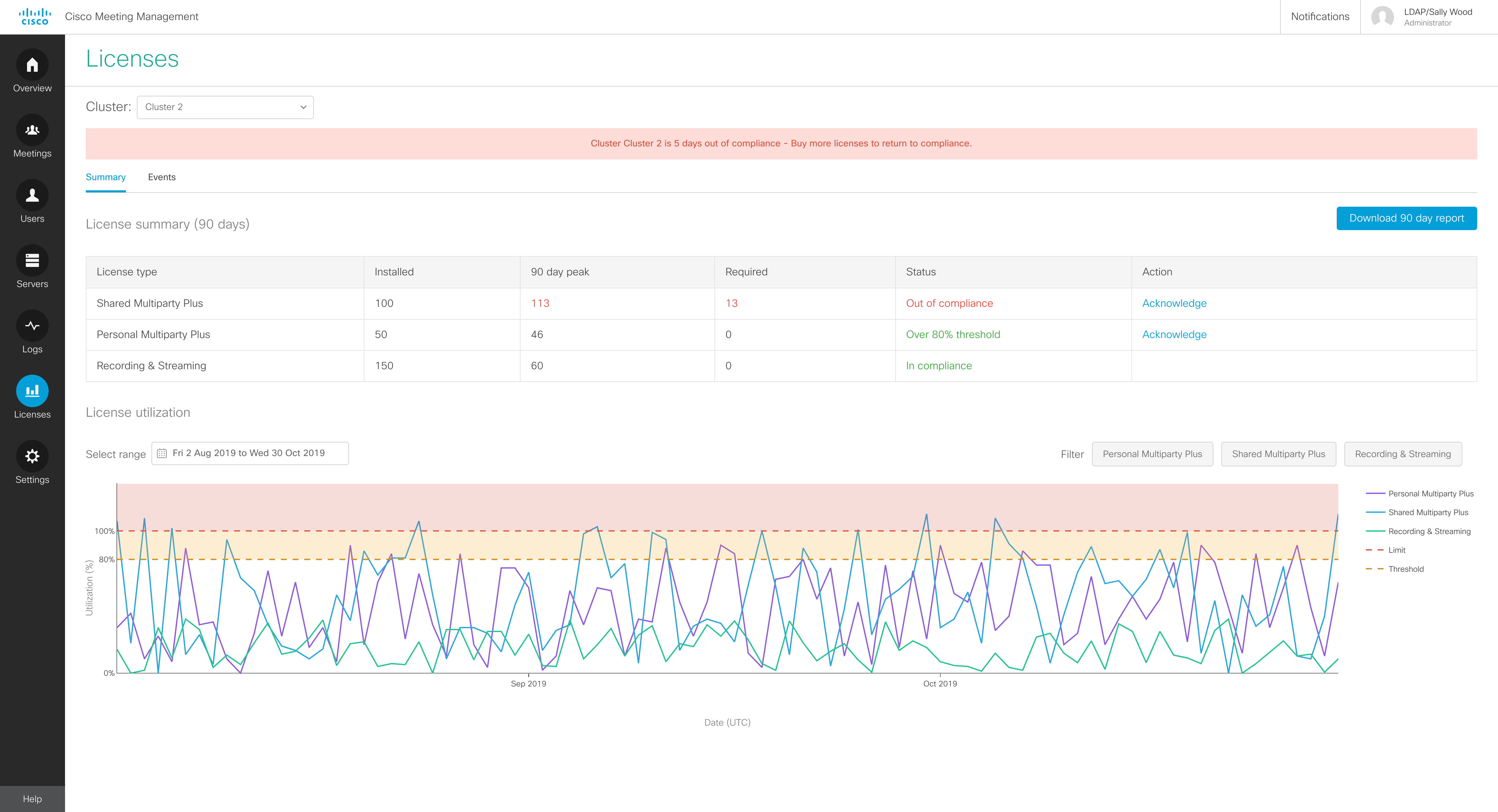
For each license type, the table displays the following information:
-
Installed: Number of licenses installed
This is only seen for traditional licensing.
Note: If you are using Smart Licensing, then the column header will say Available for reporting, and you must enter the number of assigned licenses manually, see Enable Smart Licensing.
This is only seen for Smart Licensing.
-
Available for reporting: Number of licenses allocated to this Meeting Management deployment, entered manually by you or another administrator.
This is only seen for Smart Licensing.
- 90 day peak: Highest number of licenses used within the last 90 days
-
Required: Suggestion of how many licenses to purchase, based on the difference between installed licenses and the 90 day peak value
This is only seen for traditional licensing.
-
Last reported: The last peak that was reported to the Cisco Smart Software Manager.
This is only seen for traditional licensing.
Note: 90 day peak is rounded up to nearest 1 decimal place, and the Last reported is rounded up to the nearest whole number. This means that in some cases, the number for Last reported may be higher than the number for 90 day peak.
-
Status: The status of compliance
For an explanation of each status for traditional licenses, see Overview - see notifications and license status. For an explanation of the status for Smart Licensing, see embedded help on the Settings page, Smart Software Licensing tab.
-
Action: If the status is Over 80% threshold or Out of compliance, an Acknowledge button is displayed here until you or another user clicks it.
When you click the Acknowledge button, you are verifying that you have seen the status and taken action as required in your organization. When you acknowledge the status, the button will disappear, the blue bell icon on the Overview page will show fewer unacknowledged statuses or disappear, and the Events will show all users that you have acknowledged the status.
Note: The Acknowledge button will reappear next time the daily peak is over the threshold.
The license status is based on status for the following license types:
-
Personal Multiparty plus licenses
These are assigned to specific users, and one license is valid for one active meeting.
-
Shared Multiparty plus licenses
These are shared between all users, and one license is valid for one active video meeting. Some meeting types consume only 1/6 of a license.
-
Recording and streaming licenses
These are shared between all users, and one license is valid for one ongoing recording or one ongoing streaming session.
See the Cisco Meeting Server 2.6 Release Notes as well as the Cisco Meeting Server Deployment Guides for more information on license types and how licenses are applied to meetings.
Note: If Capacity Units are installed, the table will display a row for those. It will only show how many units are installed; Meeting Management cannot track the use of these.
If you want more details than you can see in the summary, you can download 90 day report.
Meeting Management will provide a zip file named license-data.zip, which contains the following files:
-
host-reported.csv
This file contains the raw data as Meeting Management receives it from the separate Call Bridges in the cluster. Each row will display:
- Host ID for the specific Call Bridge
- Time stamp (UTC)
- For each license type, number of licenses used.
Note: Call Bridges report recording and streaming use separately, but Meeting Management tracks all recording and streaming together because they consume the same license type.
Note: If Capacity Units are installed, the number of installed licenses will be displayed in the 90 day report, but the use of licenses will be shown as if you were using SMP plus or PMP plus licenses.
-
cluster-bins.csv
This file contains cluster wide license use for each 5-minute interval, as calculated by Meeting Management. Each row will display:
- Time stamp for start time of the 5-minute interval (UTC)
- For each license type, summary of licenses used for all Call Bridges.
-
daily-peaks.csv
This file contains daily peaks, as calculated by Meeting Management. Each row will display:
- Date (UTC)
-
For each license type, peak number of licenses used that day after 3 point median smoothing