What is new in 3.8 for administrators
This is an overview of new features and changes that are relevant for administrators.
Enhancements in license reservation
Meeting Management uses License reservation to activate features and reserve licenses. From version 3.8, while reserving a license in the Licensing section, if Cisco Smart Software Manager (CSSM) takes more time than the expected 30 seconds to respond, two more retries will be attempted with varying timeout values. Meeting Management waits for 60 seconds and 90 seconds for second and third retry respectively. If license reservation is unsuccessful after three retries, Overview page of Meeting Management displays Unable to reach Cisco Smart Software Server. Users can then reinitiate the license reservation procedure and the message will be cleared after the licenses are successfully reserved.
From this release, the Licensing reports downloaded using Download log bundle button in CMM logs tab in Logs page will include the number of attempts or retries made for license reservation.
Assigning spaces to video operators using Meeting Management
From version 3.8, Meeting Management administrators can tag video operators to specific spaces, giving them access to the meetings associated with those spaces only. Previously, Meeting Management video operators had access to all spaces and meetings. Administrators can now limit this by adding tag(s) while creating or modifying video operators allowing them to manage and monitor the meetings more effectively.
In this feature:
-
Each space can have a single tag. However, the same tag name can be added to multiple spaces. Administrators can then assign this tag to video operators, providing them access to appropriate space or meeting. Tag name may contain up to ten characters and is case-insensitive. It can be created in Meeting Server only, using the coSpace API.
-
A video operator can be given access to multiple spaces and meetings by assigning multiple tags. A video operator can be assigned a maximum of 10 tags.
-
Space tags can be added to both new and existing video operators. If video operators are not assigned any tags, they will have access to all the spaces or meetings (with or without tags). Similarly, meeting spaces that do not have tags will be visible to operators who do not have any tags assigned.
-
Tags added or modified for a space during an ongoing meeting will reflect only from the subsequent meeting.
-
Tags added or modified to video operators while they are signed in to Meeting Management, will reflect only after the video operator signs in for the next session.
-
Meeting Management administrators can view all the meetings and spaces (with or without tags) using the Meetings or Spaces tab respectively. Tags cannot be added to Meeting Management administrators.
-
Video operators will only be able to move participants to the meetings held in the spaces they are tagged to.
-
The usernames for administrator and video operator must be unique.
-
It is recommended to use different usernames for both Local and LDAP user group to avoid the tags from being assigned incorrectly.
-
On removing/disconnecting any LDAP user group from Meeting Management and then adding it back, Meeting Management continues to retain the tags assigned by the administrator to that LDAP user group.
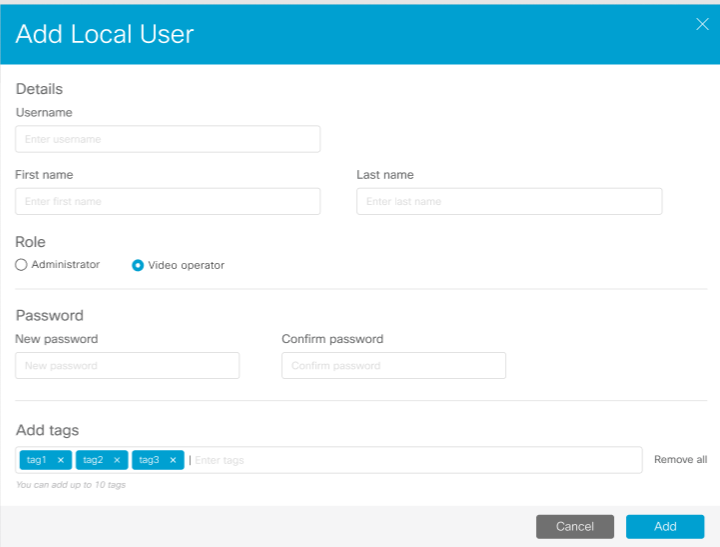
Follow these steps to add tags for a new video operator:
-
On the Users page, in Local tab, click Add Local User button to launch Add Local User pop-up window.
-
In the new Add tags field, enter the tags to be assigned. Add tag(s) corresponding to the space(s) in the new field. A maximum of ten tags can be allotted for a video operator.
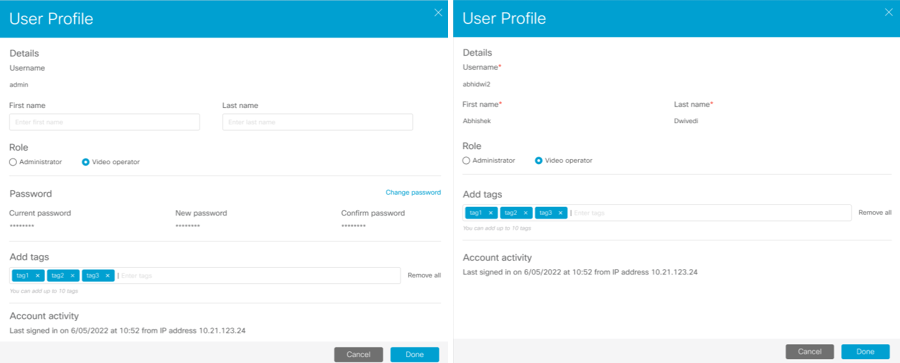
Follow these steps to add tags for the existing video operators and LDAP user groups:
-
On the Users page, in Local/ LDAP user groups tab, scroll down to find the video operator for assigning space tags.
-
Click View User Profile button available in Actions against the selected video operator to launch User Profile pop-up window.
-
Click Edit button in Add tags field.
-
Add tag(s) corresponding to the space(s) in Add tags. A maximum of ten tags can be allotted for a video operator.
-
Click Done.
Accessibility improvements
In version 3.8, Meeting Management introduces the following accessibility improvements:
-
All the radio buttons in Meeting Management can be navigated using Arrow keys.
-
The tool tip/help tip buttons in the Licenses page opens text only when clicked.
-
Keyboard users can navigate between the options in Local/Admin menu on the top right using the Arrow keys.
-
When the user tab to Overview option in the left side, they are now able to use Arrow keys to navigate through all the tabs.
-
All the headings are now in logical hierarchy in Overview page.
-
In Smart licensing option in Overview page, focus now moves inside the date picker only when user presses Tab key, after pressing Enter key used for opening the date picker.
-
While using screen reader, when the user presses Enter key to navigate to various options in the Licenses page, all the options can be activated.
-
In Overview page, when the user presses Done button in the Notifications dialog or Esc button, the focus is back to See notifications button.