Find meetings
If you are monitoring many meetings, here are a few hints to help you find the relevant meetings:
-
Pin meetings at the top of the list, from the list view, or from the meeting details of the meeting you want to pin.

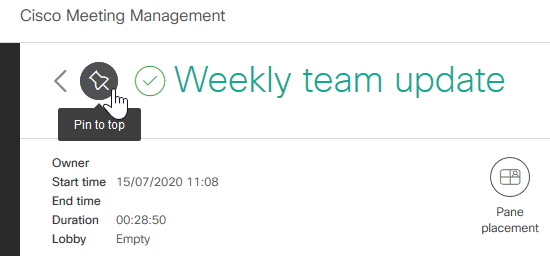
Pinned meetings stay at the top until you unpin them, or until you sign out.
-
Filter to see scheduled or unscheduled meetings, or filter to see meetings with a specific status.

By default, the filters for Active and Upcoming meetings are selected when you enter the Meetings page.
-
Sync scheduled meetings if you are looking for a meeting that was scheduled less than 5 minutes ago. Meeting Management automatically synchronizes with TMS every 5 minutes, but you can start the synchronization manually if you want to find a specific meeting that has just been scheduled.
Note: You will see a message when the synchronization starts, but Meeting Management does not let you know when it is finished, and it does not highlight which meetings were added to your view in Meeting Management.
-
Sort by column, ascending or descending.

-
Sort by multiple columns, ascending or descending.
Sort by one column, then hold shift down to refine the sorting by clicking another column. For example, you can click the Meeting title column, then hold shift down and click the Participants column. Then all meetings will be sorted alphabetically by meeting title, and meetings with the same title will be sorted by the number of participants in the meeting.
In the screenshot below, you can see that meetings are sorted by meeting title, Z → A, and then further sorted by number of participants, lowest → highest.

The meetings stay sorted as selected until you leave this view. By default, meetings are sorted by start time, ascending, when you enter the Meetings page.
-
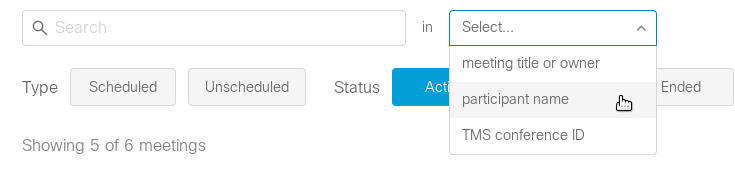
Search for meetings with a specific title or owner, participant, or TMS conference ID.
All search results are listed by meeting title. As you start typing, Meeting Management will list meetings that contain items that match the search criteria, but it does not display participant name or TMS conference ID.
You can see the TMS conference ID when you hover over a meeting title. To see the participant you searched for, you must open the meeting details to check.